Update: It appears that I have found the solution to the problem below. It’s more detailed than I thought, but fairly simple.
The problem is not Bing itself, but a piece of camel ejecta called “conduit.”
Going to about:config and typing in “conduit” turned up a veritable plethora of infected entries (here I have already cleared the first three).

Right-clicking on each entry allows you to select a pick called “reset.” Once I had done this, and closed out Firefox, my URL bar search remained pointed to Google. I’m keeping my fingers crossed that the problem doesn’t return. For what it’s worth, it appears that the culprit that brought it along was uTorrent.
*yarg*
I’ve been over this before. On May 3rd of this year, I posted the following over at my Livejournal:

I have been told that it’s not becoming of a Christian soul to consign others to Hell, even in jest, regardless of the magnitude of their transgressions. Ultimate judgment does not rest in our hands, and in the end, we all fall short.
Heck, however, ruled over by Phil, the Prince of Insufficient Light, is another matter.
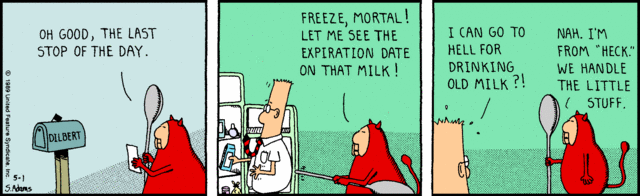
©1989 United Features Syndicate
Every now and then, some piece of hqiz software that I install brings an unpleasant and unexpected “bonus” along with it: the infestation of my browsers with “Bing.”
My home page gets changed, my search engines get shuffled, my URL search bar default is hijacked, and I’m gifted with an unasked-for toolbar.
And mind you, I’m very careful when installing things to uncheck all the little extras that many packages hope you’ll opt-in for.
Surely people who write such installation packages deserve to spend Eternity in Heck.

If you’re a Firefox user and this has happened to you, here’s how to exorcise the demons.
1) Close Firefox, and via Control Panel, navigate to “Uninstall or Change a Program”. I’m using Win7 Professional, but all recent Windows operating systems have some variation of this. Look for and nuke anything that says “Bing” in it. This should get rid of the Bing toolbar.
2) Open Firefox, go to Tools/Add-ons. Look at both “Extensions” and “Plug-ins” and clobber anything that says “Bing” in it.
3) Next to your URL bar you’ll see something that looks like this:

By clicking on the little triangle, you’ll get a drop-down menu. Choose the option that says “Manage Search Engines.”

If Bing is there, make another option your default search engine, move it to the top, and delete Bing. Delete it hard, and sing “My Way” while you do it.
4) This is the tricky one, because it’s buried deep. If you type key words in your URL bar, you’ll be redirected to some Bing search helper.
- In your URL bar, type “about:config” without the quotes
- Tell Firefox you’ll be really careful.
- search for “keyword.URL”
- replace the value you find there with this (again, without the quotes) “http://www.google.com/search?ie=UTF-8&oe=UTF-8&sourceid=navclient&gfns=1&q=”
This will return the default URL search results to Google. If you want another search engine here, you’ll have to hunt around for the appropriate string – Google is all I ever use.
That should do it. If you execrate Bing as much as I do, perhaps you will find this useful if you have ever been “Bung.”
You’re welcome.
But you know what’s driving me nuts? I have followed my own advice, and what I find is that replacing Keyword:URL only works for the current session. As soon as I close and re-open Firefox (currently v. 15.0), the value pops back to “http://search.conduit.com/ResultsExt.aspx?ctid=CT3072253&SearchSource=2&q=”
Now I really want to slap someone. That’s just downright dirty. I’ve searched my registry (Win7 Pro, 64-bit) and “search.conduit.com” doesn’t exist anywhere as a key. I’m totally at a loss to what to do next.
At least I was, until I finally found what I desperately hope to be the proper solution.

 Playing in the World Game
Hmm. I found a couple entries for that… but I’m more interested in getting rid of Babylon. I uninstalled its malicious toolbar, and have reset a couple strings… but there are others where the title of the string is Babylon, so I can’t remove it. I’ll try some registry editing, and then I’m going to have to call on a higher power.
http://support.mozilla.org/en-US/questions/924804#answer-332060 – see if this thread contains any suggestions you have not seen, especially the reply by adro801. It sounds nasty.
Nope. I had already done everything they suggested. There are still thread-level keys linking to Babylon in my about:config file.
Dang, it’s worse than I thought 😦